CONFLUOVEST GUIDE
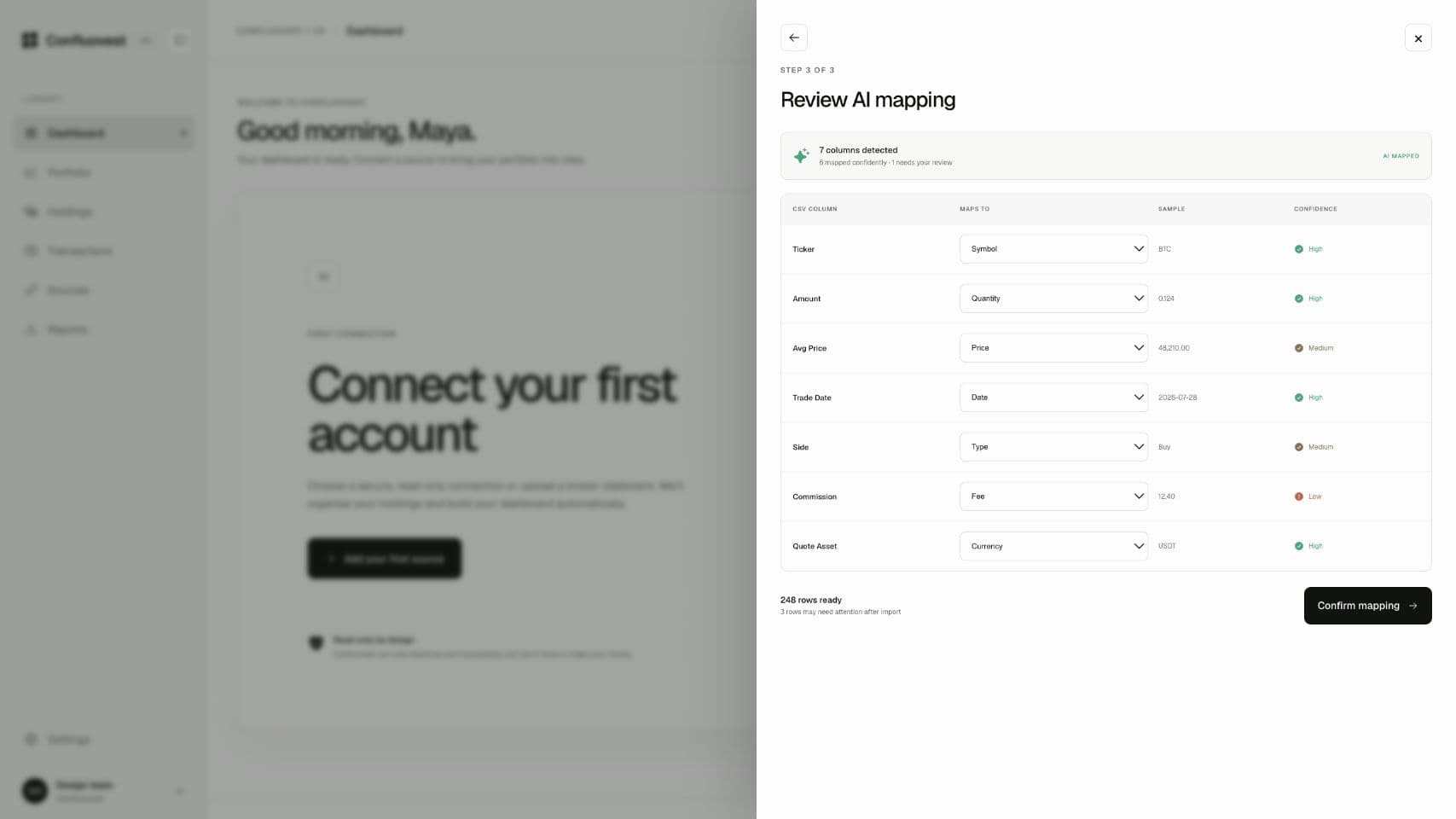
Bring in a statement from Bamboo, Trove, Chaka, an NGX broker, or any platform with an export button.
Steps
- Export a CSV. Download a holdings or transactions export from your platform. See the per-platform export notes if you need the exact menu path.
- Open Add source → Upload CSV. Name the source, such as “Bamboo”. This label appears everywhere in your portfolio.
- Review the AI-detected mapping. Confidence is shown per field. Override any column with the dropdown if needed.
- Confirm the import. Skipped rows are listed as warnings you can revisit later from Sources.
- Re-upload safely. Duplicate transactions are detected automatically.
You always get the final say.
Nothing is imported until you review and confirm the proposed mapping.
Important notes
Rows with missing or invalid data are flagged and skipped — never silently imported wrong. Download the skipped-row report if you need to fix the original file.
Troubleshooting
If the mapping confidence is low, choose the correct source column manually and confirm the required fields before importing.